Forms
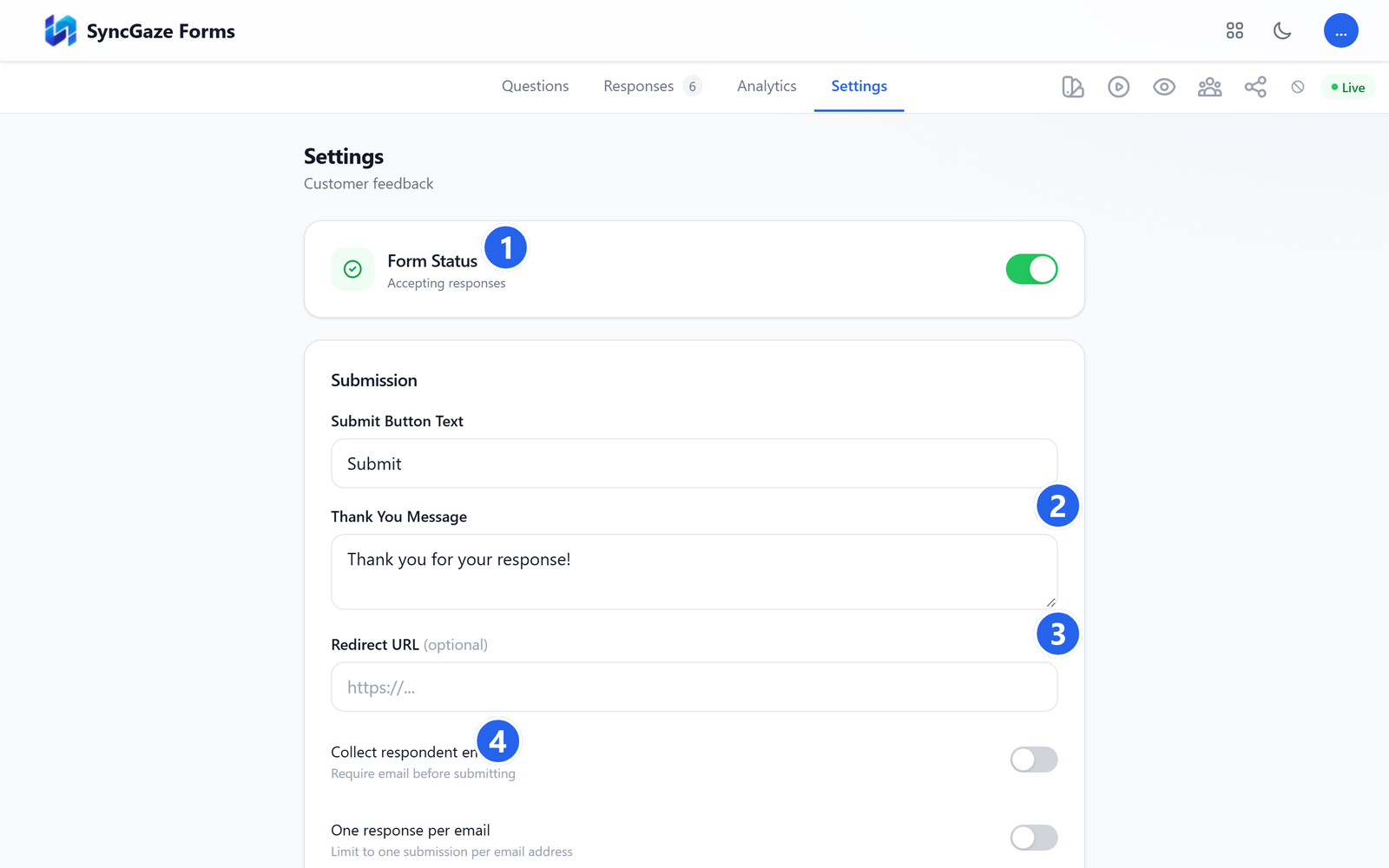
Form settings
Tune how a form behaves: what people see after submitting, when it's open, how many answers it takes, and whether it needs a password. Open a form and choose the Settings tab.
After they submit
- Submit button text and a thank-you message.
- A redirect link to send people to your own page. It must start with
https://orhttp://: other kinds of links are ignored for safety.
Screenshot coming soon
screens/forms-settings.png
Settings.
- 1Form status: turn off to stop accepting responses.
- 2Thank you message: shown after someone submits.
- 3Redirect URL: optionally send people to a page of yours instead.
- 4Collect respondent email: ask for an email address before they submit.
Respondents
- Collect respondent email: people sign in to SyncGaze and their own address is recorded automatically. It can't be typed in, so nobody can answer as someone else.
- One response per email: stops the same person submitting twice (works with “collect email”).
- Who is allowed to fill the form at all (anyone, only your organisation, or only invited people) is set in the Share dialog → Who can respond.
Limits & dates
- Max responses: the form closes by itself when it reaches the number. The limit is exact, even when many people submit at the same moment.
- Accept responses from / Close date: use your own local time; SyncGaze remembers your time zone. Before the start people see “This form is not open yet” with the opening time, after the close date they see your closed message.
- Custom closed message: what people see when the form is closed or full.
Password protection
Type a password and press Set. Respondents must enter it before any question is shown. The password is stored scrambled (like account passwords): nobody, including you, can read it back. You'll see Password is set with Change and Remove.
Changing the passwordAnyone who had unlocked the form with the old password must enter the new one before they can submit.
Display
- Show a progress bar on multi-page forms and shuffle question order.
- Quiz mode: see Quiz mode. Correct answers are never sent to respondents' browsers.
Troubleshooting
| Problem | Cause | Fix |
|---|---|---|
| “This form is not open yet” | The start date hasn't arrived. | Check Accept responses from, or clear it. |
| “This form is no longer accepting responses” | Past the close date, reached max responses, or you closed it. | Move the close date, raise the limit, or reopen the form at the top of Settings. |
| “Incorrect password” | Wrong password, or it was changed. | Share the current password, or Change it. After 10 wrong tries people wait 10 minutes. |
| Asked to sign in before filling | “Collect email” is on, or the form is limited to your organisation / invited people. | Turn those off if the form should be open to anyone. |
| Redirect doesn't happen | The link doesn't start with https://. | Paste the full web address. |
| Someone submitted twice | “One response per email” is off. | Turn on “Collect email” and “One response per email”. |
What's next?